Operator actions
Routine operation
For each approved offline CA operation:
-
Restore the latest trusted state when working on an existing CA
-
Perform only the approved Stream operation
-
Export generated certificates or ARLs/CRLs
-
Inspect exported material with
CHECK -
Run a backup
-
Update the operation report
-
Unmount removable media
-
Shut down the appliance.
Operation routing
| Need | Appliance action | Stream action |
|---|---|---|
Export issued certificates |
Save directly to mounted USB, then use |
Download the certificate and choose |
Export ARL/CRL material |
Save directly to mounted USB, then use |
Generate or download the ARL/CRL in Stream. |
Verify restored CA state |
Use |
Review managed CA and keystore status. |
Collect diagnostics |
Use |
Run Stream-side diagnostics only when required by the troubleshooting procedure. |
Prepare upgraded Live USB media |
Flash a blank USB key or USB disk with the latest approved Stream Offline CA ISO. |
Verify the ISO checksum or signature and record the new media identifier. |
Download directly to USB
Chromium asks where to save each download and proposes /mnt/usb by default.
This setting is applied to every new browser session.
-
Mount the intended USB partition from the operator console before downloading.
-
Ensure the mounted filesystem is writable by the kiosk user (
evertrust). -
Download the object in Stream. In the native save dialog, confirm
/mnt/usbor choose another writable directory and the filename. -
Wait for the download to finish, then inspect the saved material with
CHECKwhen applicable. -
Use
UNMOUNTbefore removing the USB key.
The save dialog does not mount USB media or grant filesystem permissions.
For files saved in /home/evertrust/Downloads, the existing EXPORT actions remain available for certificates (.pem, .crt) and CRLs (.crl).
Console actions
| Action | Description |
|---|---|
|
Moves downloaded |
|
Moves downloaded |
|
Stages the selected certificate locally and displays:
|
|
Stages the selected CRL locally and displays:
|
|
Displays disk and USB device information:
|
|
Attempts to sync and cleanly unmount the managed USB mountpoint. The live boot media is protected from unmount operations. |
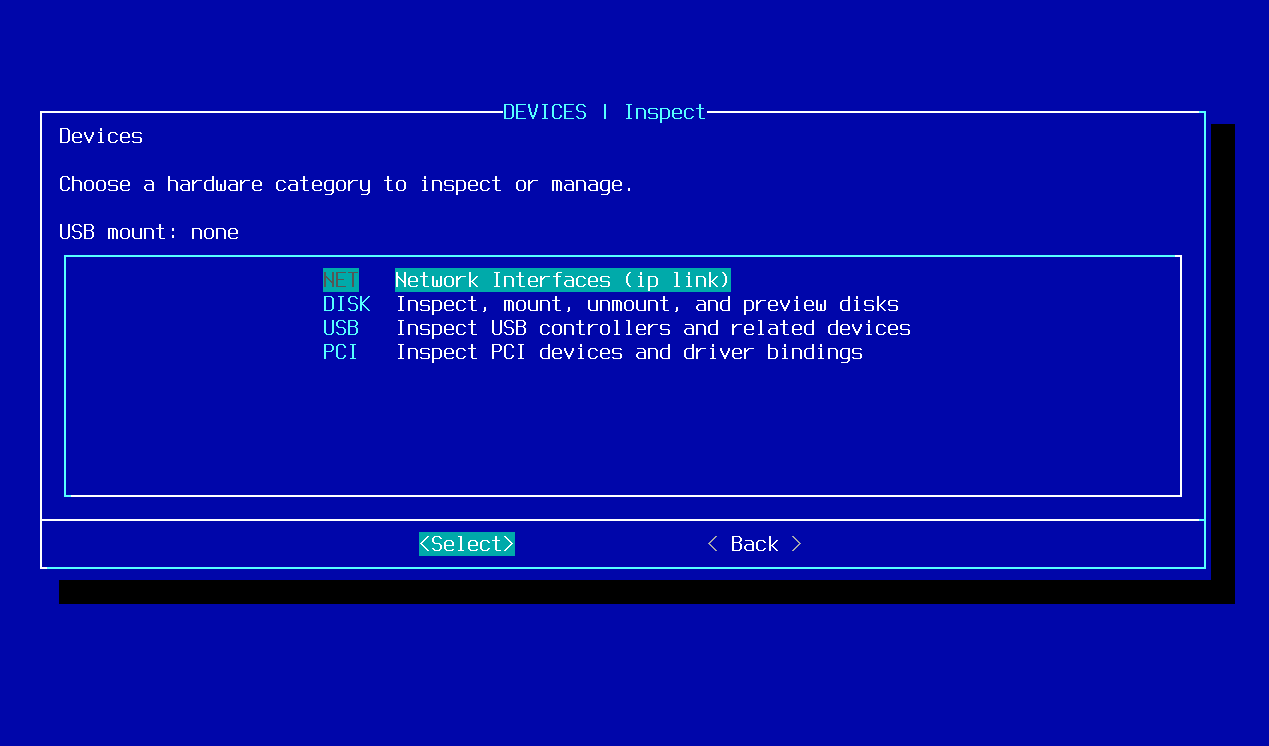
The DEVICES action opens the hardware inspection menu for network interfaces, disks, USB controllers, and PCI devices.
Maintenance actions
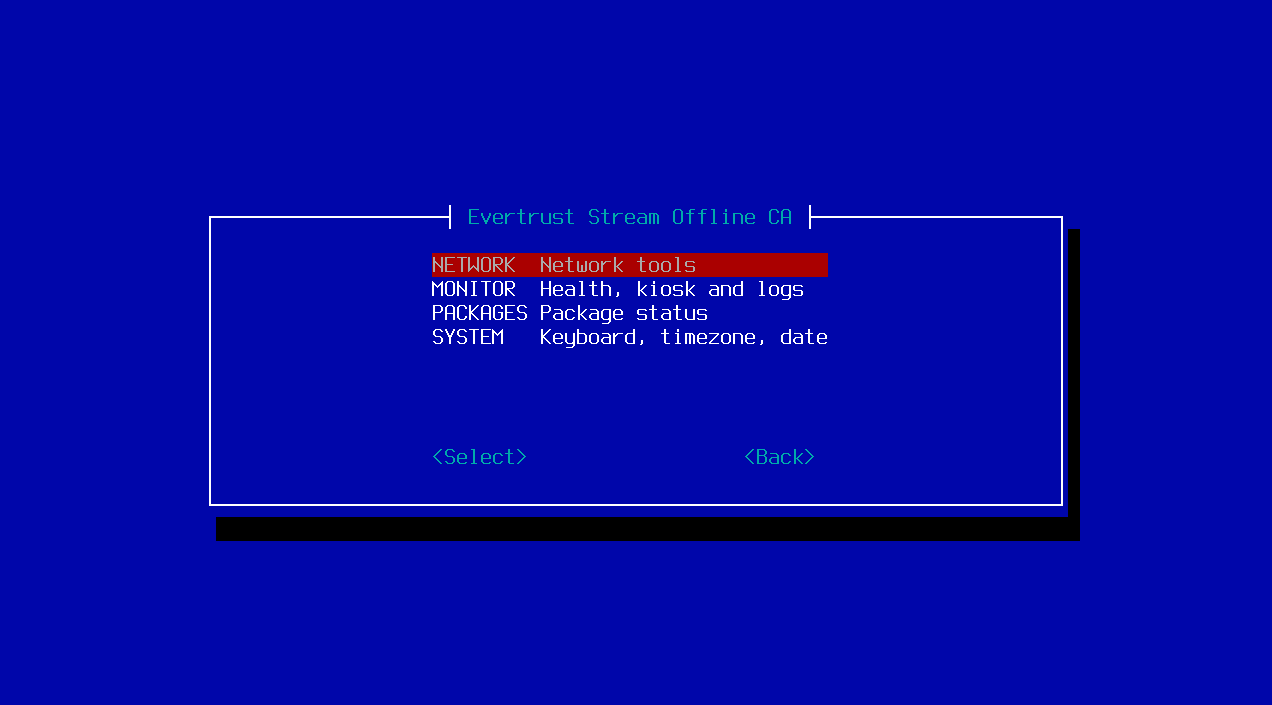
The SETTINGS menu exposes network, monitor, package, and system tools.
Use these tools only during an approved maintenance window.
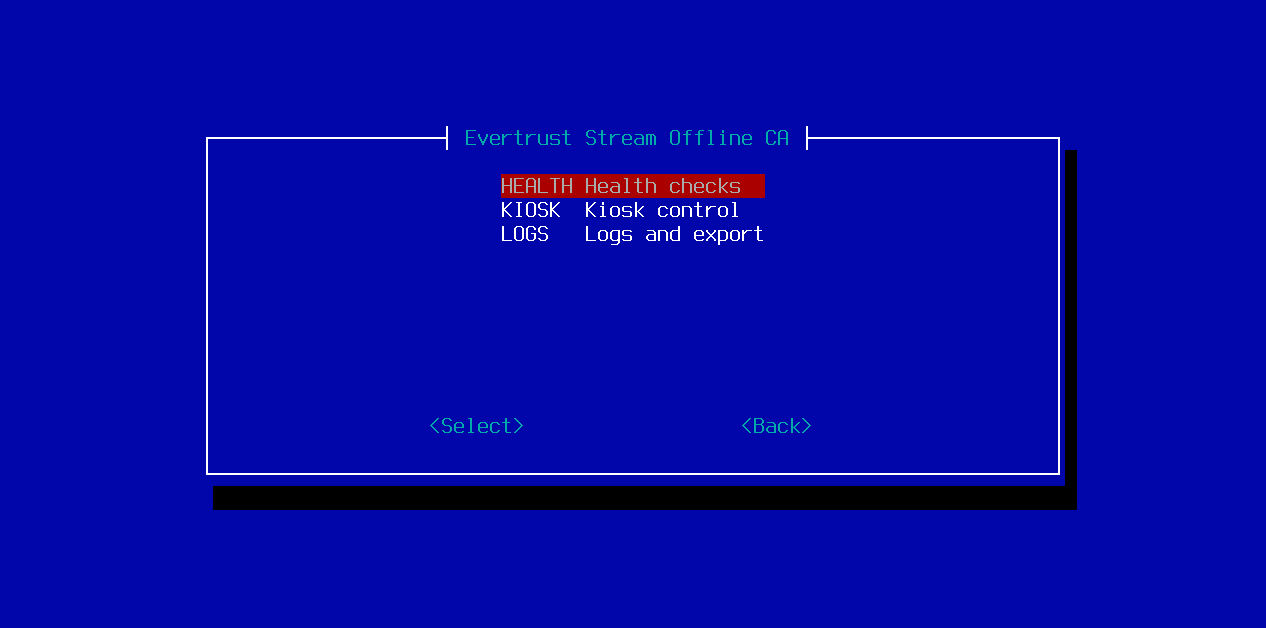
SETTINGS > MONITOR groups health checks, kiosk control, and log export actions.
Runtime logs use a readable single-line format by default:
2026-06-05T10:20:30Z | INFO | boot-menu.sh[1234] | restore_bundle:4010 | event=restore_bundle status=metadata_integrity_ok ...Start troubleshooting with /opt/offline_ca/log/boot-menu.log and the workflow-specific log reported by the failing screen.
When deeper runtime diagnostics are required, set OFFLINE_CA_LOG_LEVEL=DEBUG in /etc/offline_ca/paths.env, reproduce the issue, then return it to INFO.
Keep OFFLINE_CA_LOG_FORMAT=pretty for operator review; use OFFLINE_CA_LOG_FORMAT=kv only when a legacy parser requires the older key=value format.
Command trace lines are truncated according to LOG_COMMAND_TRACE_MAXLEN.
Sensitive fields such as passwords, PINs, tokens, private keys, authentication passwords, and share values are masked before they are written.
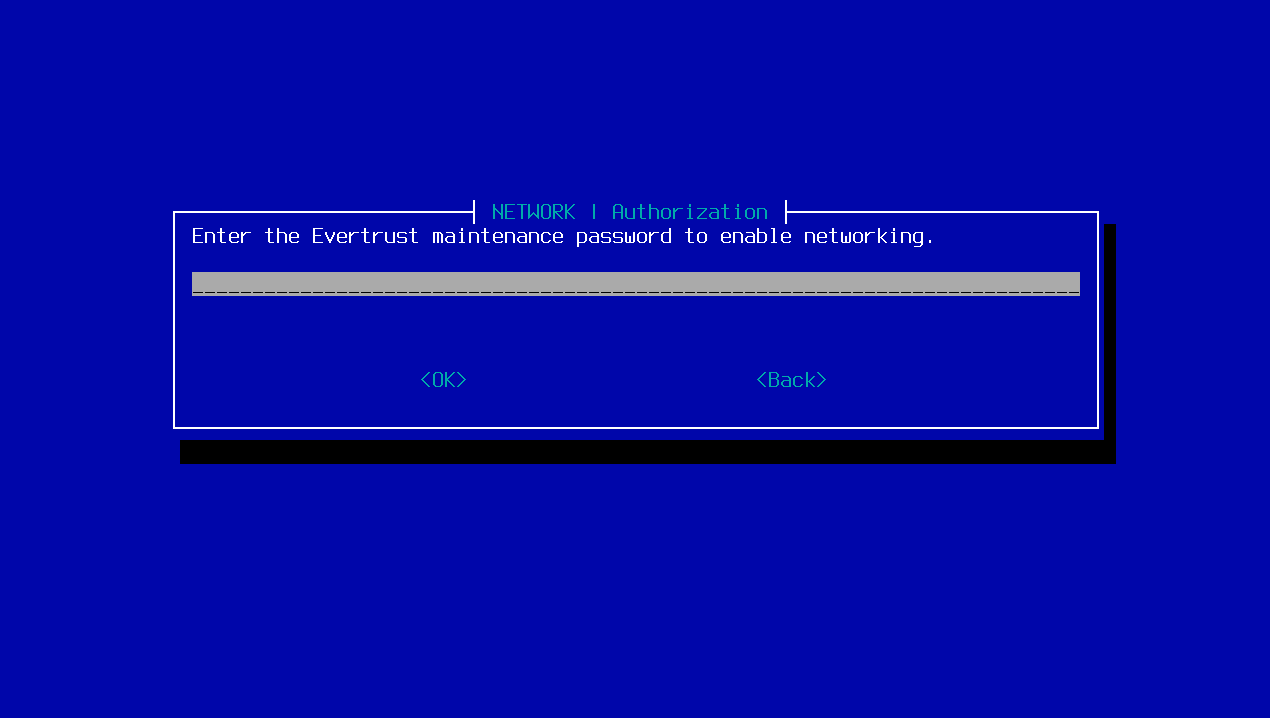
SETTINGS > NETWORK > NET-ON can enable NetworkManager.
This action is protected by the Evertrust maintenance password.
The appliance compares the entered password against the provisioned SHA-256 hash and refuses empty, missing, invalid, or unsafe password-hash configuration.
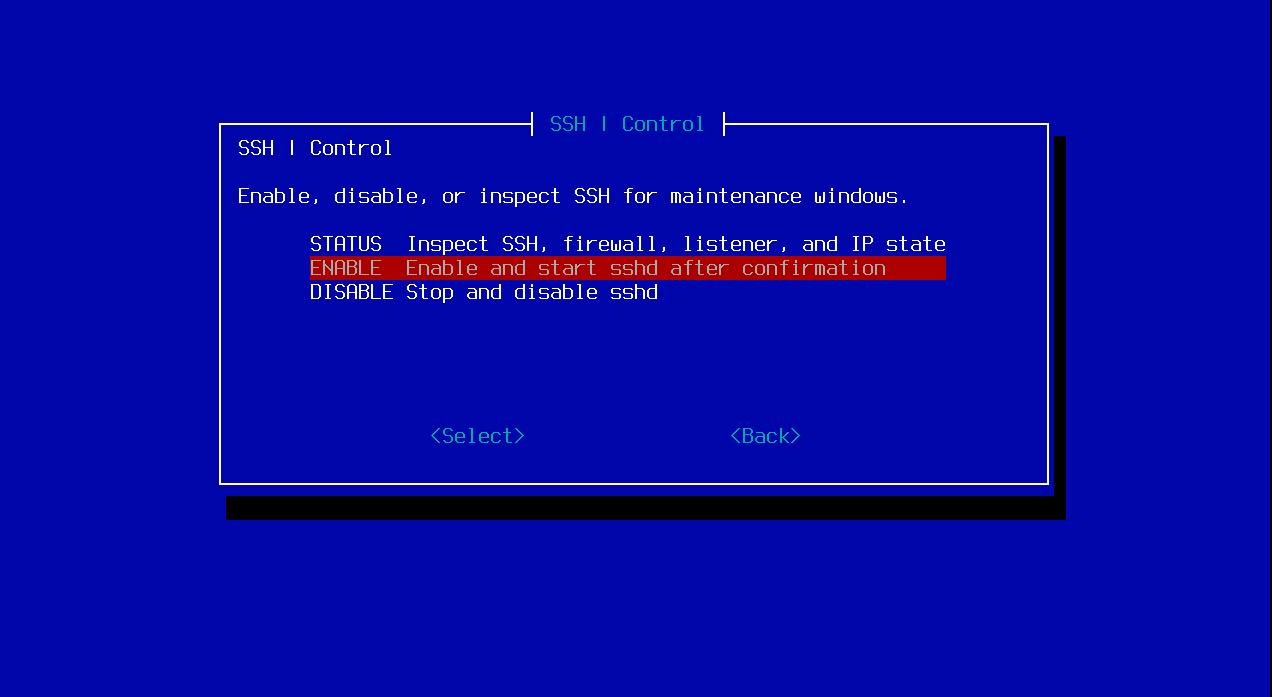
SSH appears only after the network gate is opened and NetworkManager is active.
sshd.service is disabled by default during appliance startup and after network activation.
Enabling SSH requires the operator to open SETTINGS > NETWORK > SSH, review the SSH status, and explicitly confirm the service start.
|
Network and SSH are maintenance controls, not normal offline CA operating controls. If they are enabled, record the reason, approver, timestamp, IP address, operator, and disable result in the operation report. Disable SSH and NetworkManager when maintenance is complete. |
| Control | Default behavior | Required operator action |
|---|---|---|
NetworkManager |
Disabled until |
Enter the Evertrust maintenance password, configure networking only for the approved window, then disable it. |
NET-ON password |
The clear password is never stored in the project. The appliance expects an out-of-band SHA-256 hash file and rejects the hash of an empty password. |
Use the approved maintenance password. Do not record the clear password in the operation report. |
SSH menu |
Hidden until the network gate marker exists and NetworkManager is active. |
Enable networking first, then return to |
sshd service |
Disabled by default. |
|